Portkey Integration
Introduction
Section titled “Introduction”Portkey enhances CrewAI with production-readiness features, turning your experimental agent crews into robust systems by providing:
- Complete observability of every agent step, tool use, and interaction
- Built-in reliability with fallbacks, retries, and load balancing
- Cost tracking and optimization to manage your AI spend
- Access to 200+ LLMs through a single integration
- Guardrails to keep agent behavior safe and compliant
- Version-controlled prompts for consistent agent performance
Installation & Setup
Section titled “Installation & Setup”- Install the required packages
Terminal window pip install -U crewai portkey-ai - Generate API Key
Create a Portkey API key with optional budget/rate limits from the Portkey dashboard. You can also attach configurations for reliability, caching, and more to this key. More on this later.
- Configure CrewAI with Portkey
The integration is simple - you just need to update the LLM configuration in your CrewAI setup:
from crewai import LLMfrom portkey_ai import createHeaders, PORTKEY_GATEWAY_URL# Create an LLM instance with Portkey integrationgpt_llm = LLM(model="gpt-4o",base_url=PORTKEY_GATEWAY_URL,api_key="dummy", # We are using a Virtual key, so this is a placeholderextra_headers=createHeaders(api_key="YOUR_PORTKEY_API_KEY",virtual_key="YOUR_LLM_VIRTUAL_KEY",trace_id="unique-trace-id", # Optional, for request tracing))#Use them in your Crew Agents like this:@agentdef lead_market_analyst(self) -> Agent:return Agent(config=self.agents_config['lead_market_analyst'],verbose=True,memory=False,llm=gpt_llm)
Production Features
Section titled “Production Features”1. Enhanced Observability
Section titled “1. Enhanced Observability”Portkey provides comprehensive observability for your CrewAI agents, helping you understand exactly what’s happening during each execution.
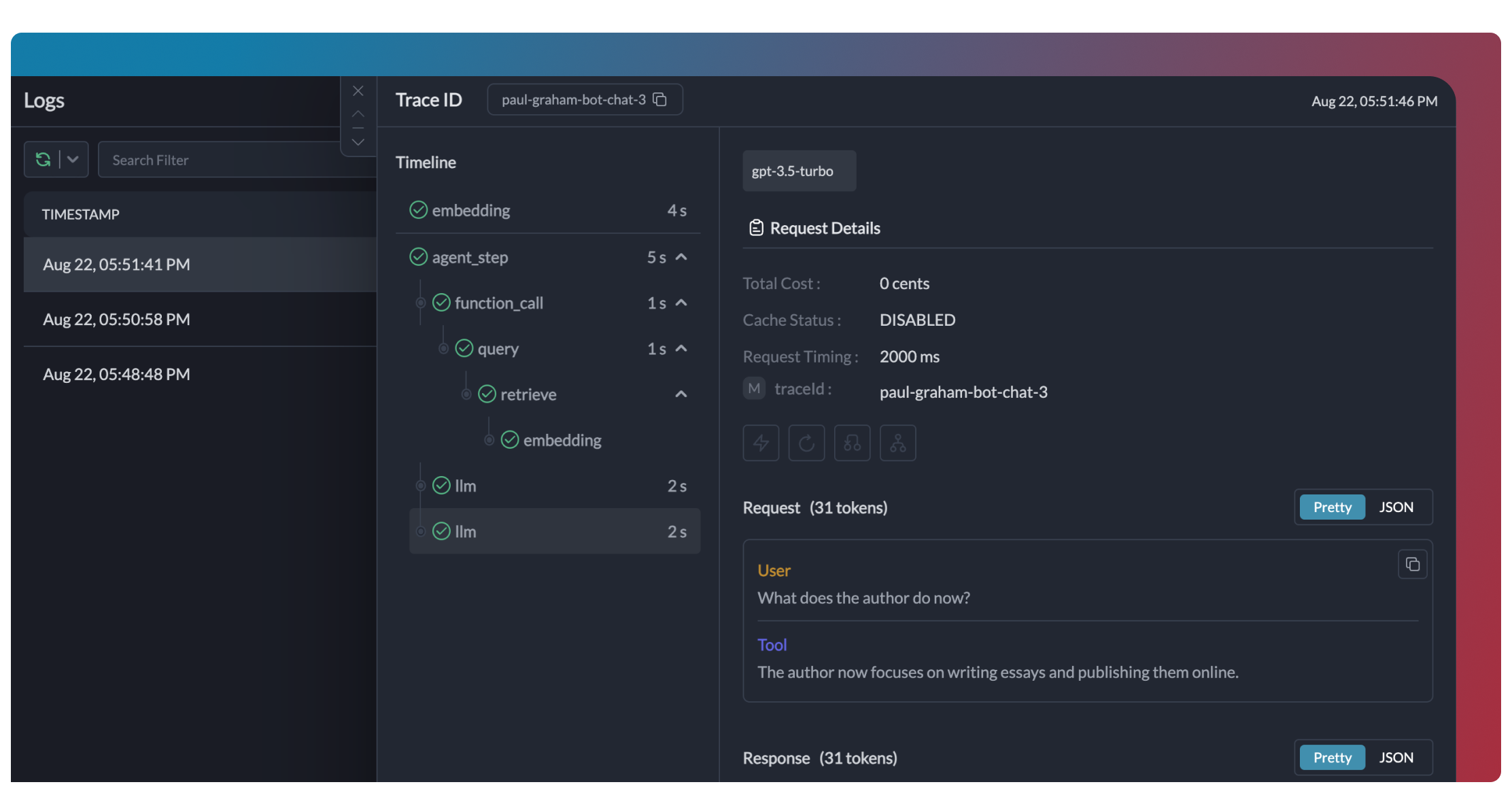
Traces provide a hierarchical view of your crew’s execution, showing the sequence of LLM calls, tool invocations, and state transitions.
# Add trace_id to enable hierarchical tracing in Portkeyportkey_llm = LLM( model="gpt-4o", base_url=PORTKEY_GATEWAY_URL, api_key="dummy", extra_headers=createHeaders( api_key="YOUR_PORTKEY_API_KEY", virtual_key="YOUR_OPENAI_VIRTUAL_KEY", trace_id="unique-session-id" # Add unique trace ID ))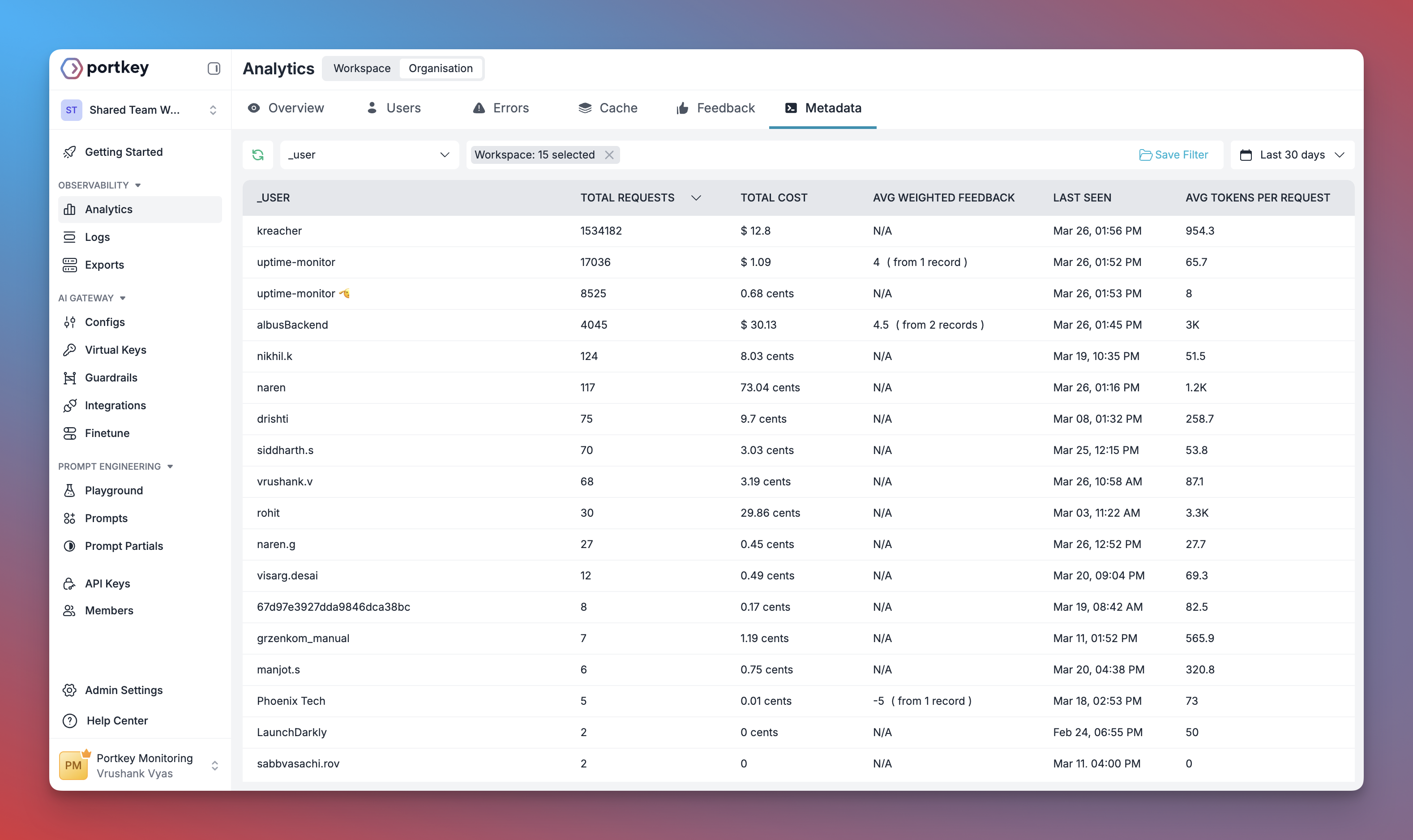
Portkey logs every interaction with LLMs, including:
- Complete request and response payloads
- Latency and token usage metrics
- Cost calculations
- Tool calls and function executions
All logs can be filtered by metadata, trace IDs, models, and more, making it easy to debug specific crew runs.
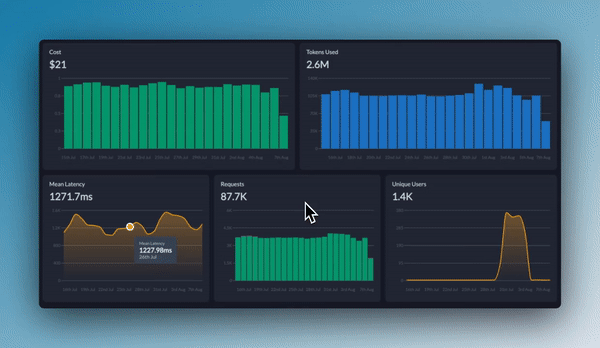
Portkey provides built-in dashboards that help you:
- Track cost and token usage across all crew runs
- Analyze performance metrics like latency and success rates
- Identify bottlenecks in your agent workflows
- Compare different crew configurations and LLMs
You can filter and segment all metrics by custom metadata to analyze specific crew types, user groups, or use cases.

Add custom metadata to your CrewAI LLM configuration to enable powerful filtering and segmentation:
portkey_llm = LLM( model="gpt-4o", base_url=PORTKEY_GATEWAY_URL, api_key="dummy", extra_headers=createHeaders( api_key="YOUR_PORTKEY_API_KEY", virtual_key="YOUR_OPENAI_VIRTUAL_KEY", metadata={ "crew_type": "research_crew", "environment": "production", "_user": "user_123", # Special _user field for user analytics "request_source": "mobile_app" } ))This metadata can be used to filter logs, traces, and metrics on the Portkey dashboard, allowing you to analyze specific crew runs, users, or environments.
2. Reliability - Keep Your Crews Running Smoothly
Section titled “2. Reliability - Keep Your Crews Running Smoothly”When running crews in production, things can go wrong - API rate limits, network issues, or provider outages. Portkey’s reliability features ensure your agents keep running smoothly even when problems occur.
It’s simple to enable fallback in your CrewAI setup by using a Portkey Config:
from crewai import LLMfrom portkey_ai import createHeaders, PORTKEY_GATEWAY_URL
# Create LLM with fallback configurationportkey_llm = LLM(    model="gpt-4o",    max_tokens=1000,    base_url=PORTKEY_GATEWAY_URL,    api_key="dummy",    extra_headers=createHeaders(        api_key="YOUR_PORTKEY_API_KEY",        config={            "strategy": {                "mode": "fallback"            },            "targets": [                {                    "provider": "openai",                    "api_key": "YOUR_OPENAI_API_KEY",                    "override_params": {"model": "gpt-4o"}                },                {                    "provider": "anthropic",                    "api_key": "YOUR_ANTHROPIC_API_KEY",                    "override_params": {"model": "claude-3-opus-20240229"}                }            ]        }    ))
# Use this LLM configuration with your agents
This configuration will automatically try Claude if the GPT-4o request fails, ensuring your crew can continue operating.
Automatic Retries
Handles temporary failures automatically. If an LLM call fails, Portkey will retry the same request for the specified number of times - perfect for rate limits or network blips.
Request Timeouts
Prevent your agents from hanging. Set timeouts to ensure you get responses (or can fail gracefully) within your required timeframes.
Conditional Routing
Send different requests to different providers. Route complex reasoning to GPT-4, creative tasks to Claude, and quick responses to Gemini based on your needs.
Fallbacks
Keep running even if your primary provider fails. Automatically switch to backup providers to maintain availability.
Load Balancing
Spread requests across multiple API keys or providers. Great for high-volume crew operations and staying within rate limits.
3. Prompting in CrewAI
Section titled “3. Prompting in CrewAI”Portkey’s Prompt Engineering Studio helps you create, manage, and optimize the prompts used in your CrewAI agents. Instead of hardcoding prompts or instructions, use Portkey’s prompt rendering API to dynamically fetch and apply your versioned prompts.
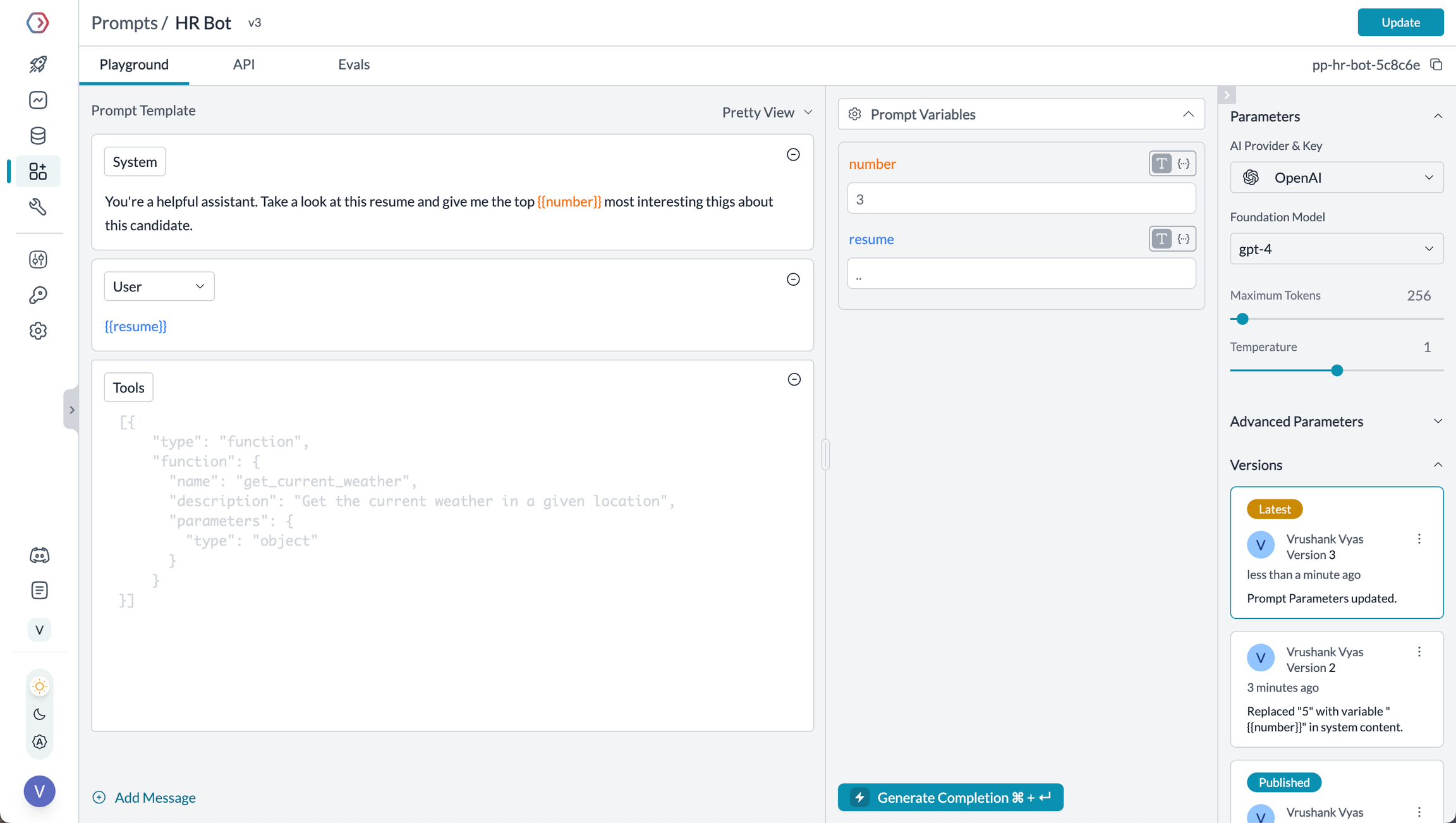
Prompt Playground is a place to compare, test and deploy perfect prompts for your AI application. It’s where you experiment with different models, test variables, compare outputs, and refine your prompt engineering strategy before deploying to production. It allows you to:
- Iteratively develop prompts before using them in your agents
- Test prompts with different variables and models
- Compare outputs between different prompt versions
- Collaborate with team members on prompt development
This visual environment makes it easier to craft effective prompts for each step in your CrewAI agents’ workflow.
The Prompt Render API retrieves your prompt templates with all parameters configured:
from crewai import Agent, LLMfrom portkey_ai import createHeaders, PORTKEY_GATEWAY_URL, Portkey
# Initialize Portkey admin clientportkey_admin = Portkey(api_key="YOUR_PORTKEY_API_KEY")
# Retrieve prompt using the render APIprompt_data = portkey_client.prompts.render(    prompt_id="YOUR_PROMPT_ID",    variables={        "agent_role": "Senior Research Scientist",    })
backstory_agent_prompt=prompt_data.data.messages[0]["content"]

# Set up LLM with Portkey integrationportkey_llm = LLM(    model="gpt-4o",    base_url=PORTKEY_GATEWAY_URL,    api_key="dummy",    extra_headers=createHeaders(        api_key="YOUR_PORTKEY_API_KEY",        virtual_key="YOUR_OPENAI_VIRTUAL_KEY"    ))
# Create agent using the rendered promptresearcher = Agent( role="Senior Research Scientist", goal="Discover groundbreaking insights about the assigned topic", backstory=backstory_agent, # Use the rendered prompt verbose=True, llm=portkey_llm)You can:
- Create multiple versions of the same prompt
- Compare performance between versions
- Roll back to previous versions if needed
- Specify which version to use in your code:
# Use a specific prompt versionprompt_data = portkey_admin.prompts.render( prompt_id="YOUR_PROMPT_ID@version_number", variables={ "agent_role": "Senior Research Scientist", "agent_goal": "Discover groundbreaking insights" })Portkey prompts use Mustache-style templating for easy variable substitution:
You are a {{agent_role}} with expertise in {{domain}}.
Your mission is to {{agent_goal}} by leveraging your knowledgeand experience in the field.
Always maintain a {{tone}} tone and focus on providing {{focus_area}}.
When rendering, simply pass the variables:
prompt_data = portkey_admin.prompts.render( prompt_id="YOUR_PROMPT_ID", variables={ "agent_role": "Senior Research Scientist", "domain": "artificial intelligence", "agent_goal": "discover groundbreaking insights", "tone": "professional", "focus_area": "practical applications" })Prompt Engineering Studio
Learn more about Portkey’s prompt management features
4. Guardrails for Safe Crews
Section titled “4. Guardrails for Safe Crews”Guardrails ensure your CrewAI agents operate safely and respond appropriately in all situations.
Why Use Guardrails?
CrewAI agents can experience various failure modes:
- Generating harmful or inappropriate content
- Leaking sensitive information like PII
- Hallucinating incorrect information
- Generating outputs in incorrect formats
Portkey’s guardrails add protections for both inputs and outputs.
Implementing Guardrails
from crewai import Agent, LLMfrom portkey_ai import createHeaders, PORTKEY_GATEWAY_URL
# Create LLM with guardrailsportkey_llm = LLM(    model="gpt-4o",    base_url=PORTKEY_GATEWAY_URL,    api_key="dummy",    extra_headers=createHeaders(        api_key="YOUR_PORTKEY_API_KEY",        virtual_key="YOUR_OPENAI_VIRTUAL_KEY",        config={            "input_guardrails": ["guardrails-id-xxx", "guardrails-id-yyy"],            "output_guardrails": ["guardrails-id-zzz"]        }    ))
# Create agent with guardrailed LLMresearcher = Agent(    role="Senior Research Scientist",    goal="Discover groundbreaking insights about the assigned topic",    backstory="You are an expert researcher with deep domain knowledge.",    verbose=True,    llm=portkey_llm)
Portkey’s guardrails can:
- Detect and redact PII in both inputs and outputs
- Filter harmful or inappropriate content
- Validate response formats against schemas
- Check for hallucinations against ground truth
- Apply custom business logic and rules
Learn More About Guardrails
Explore Portkey’s guardrail features to enhance agent safety
5. User Tracking with Metadata
Section titled “5. User Tracking with Metadata”Track individual users through your CrewAI agents using Portkey’s metadata system.
What is Metadata in Portkey?
Metadata allows you to associate custom data with each request, enabling filtering, segmentation, and analytics. The special _user field is specifically designed for user tracking.
from crewai import Agent, LLMfrom portkey_ai import createHeaders, PORTKEY_GATEWAY_URL
# Configure LLM with user trackingportkey_llm = LLM(    model="gpt-4o",    base_url=PORTKEY_GATEWAY_URL,    api_key="dummy",    extra_headers=createHeaders(        api_key="YOUR_PORTKEY_API_KEY",        virtual_key="YOUR_OPENAI_VIRTUAL_KEY",        metadata={            "_user": "user_123",  # Special _user field for user analytics            "user_tier": "premium",            "user_company": "Acme Corp",            "session_id": "abc-123"        }    ))
# Create agent with tracked LLMresearcher = Agent(    role="Senior Research Scientist",    goal="Discover groundbreaking insights about the assigned topic",    backstory="You are an expert researcher with deep domain knowledge.",    verbose=True,    llm=portkey_llm)
Filter Analytics by User
With metadata in place, you can filter analytics by user and analyze performance metrics on a per-user basis:
This enables:
- Per-user cost tracking and budgeting
- Personalized user analytics
- Team or organization-level metrics
- Environment-specific monitoring (staging vs. production)
Learn More About Metadata
Explore how to use custom metadata to enhance your analytics
6. Caching for Efficient Crews
Section titled “6. Caching for Efficient Crews”Implement caching to make your CrewAI agents more efficient and cost-effective:
from crewai import Agent, LLMfrom portkey_ai import createHeaders, PORTKEY_GATEWAY_URL
# Configure LLM with simple cachingportkey_llm = LLM(    model="gpt-4o",    base_url=PORTKEY_GATEWAY_URL,    api_key="dummy",    extra_headers=createHeaders(        api_key="YOUR_PORTKEY_API_KEY",        virtual_key="YOUR_OPENAI_VIRTUAL_KEY",        config={            "cache": {                "mode": "simple"            }        }    ))
# Create agent with cached LLMresearcher = Agent(    role="Senior Research Scientist",    goal="Discover groundbreaking insights about the assigned topic",    backstory="You are an expert researcher with deep domain knowledge.",    verbose=True,    llm=portkey_llm)
Simple caching performs exact matches on input prompts, caching identical requests to avoid redundant model executions.
from crewai import Agent, LLMfrom portkey_ai import createHeaders, PORTKEY_GATEWAY_URL
# Configure LLM with semantic cachingportkey_llm = LLM(    model="gpt-4o",    base_url=PORTKEY_GATEWAY_URL,    api_key="dummy",    extra_headers=createHeaders(        api_key="YOUR_PORTKEY_API_KEY",        virtual_key="YOUR_OPENAI_VIRTUAL_KEY",        config={            "cache": {                "mode": "semantic"            }        }    ))
# Create agent with semantically cached LLMresearcher = Agent(    role="Senior Research Scientist",    goal="Discover groundbreaking insights about the assigned topic",    backstory="You are an expert researcher with deep domain knowledge.",    verbose=True,    llm=portkey_llm)
Semantic caching considers the contextual similarity between input requests, caching responses for semantically similar inputs.
7. Model Interoperability
Section titled “7. Model Interoperability”CrewAI supports multiple LLM providers, and Portkey extends this capability by providing access to over 200 LLMs through a unified interface. You can easily switch between different models without changing your core agent logic:
from crewai import Agent, LLMfrom portkey_ai import createHeaders, PORTKEY_GATEWAY_URL
# Set up LLMs with different providersopenai_llm = LLM(    model="gpt-4o",    base_url=PORTKEY_GATEWAY_URL,    api_key="dummy",    extra_headers=createHeaders(        api_key="YOUR_PORTKEY_API_KEY",        virtual_key="YOUR_OPENAI_VIRTUAL_KEY"    ))
anthropic_llm = LLM(    model="claude-3-5-sonnet-latest",    max_tokens=1000,    base_url=PORTKEY_GATEWAY_URL,    api_key="dummy",    extra_headers=createHeaders(        api_key="YOUR_PORTKEY_API_KEY",        virtual_key="YOUR_ANTHROPIC_VIRTUAL_KEY"    ))
# Choose which LLM to use for each agent based on your needsresearcher = Agent(    role="Senior Research Scientist",    goal="Discover groundbreaking insights about the assigned topic",    backstory="You are an expert researcher with deep domain knowledge.",    verbose=True,    llm=openai_llm  # Use anthropic_llm for Anthropic)
Portkey provides access to LLMs from providers including:
- OpenAI (GPT-4o, GPT-4 Turbo, etc.)
- Anthropic (Claude 3.5 Sonnet, Claude 3 Opus, etc.)
- Mistral AI (Mistral Large, Mistral Medium, etc.)
- Google Vertex AI (Gemini 1.5 Pro, etc.)
- Cohere (Command, Command-R, etc.)
- AWS Bedrock (Claude, Titan, etc.)
- Local/Private Models
Supported Providers
See the full list of LLM providers supported by Portkey
Set Up Enterprise Governance for CrewAI
Section titled “Set Up Enterprise Governance for CrewAI”Why Enterprise Governance? If you are using CrewAI inside your organization, you need to consider several governance aspects:
- Cost Management: Controlling and tracking AI spending across teams
- Access Control: Managing which teams can use specific models
- Usage Analytics: Understanding how AI is being used across the organization
- Security & Compliance: Maintaining enterprise security standards
- Reliability: Ensuring consistent service across all users
Portkey adds a comprehensive governance layer to address these enterprise needs. Let’s implement these controls step by step.
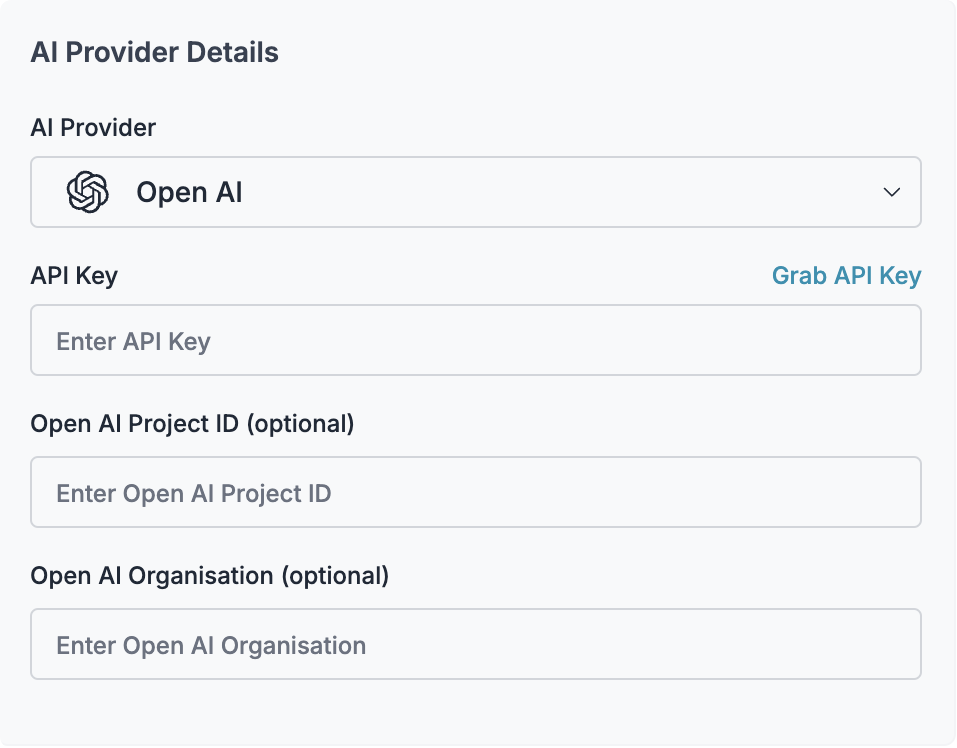
- Create Virtual Key
Virtual Keys are Portkey’s secure way to manage your LLM provider API keys. They provide essential controls like:
- Budget limits for API usage
- Rate limiting capabilities
- Secure API key storage
To create a virtual key: Go to Virtual Keys in the Portkey App. Save and copy the virtual key ID
- Create Default Config
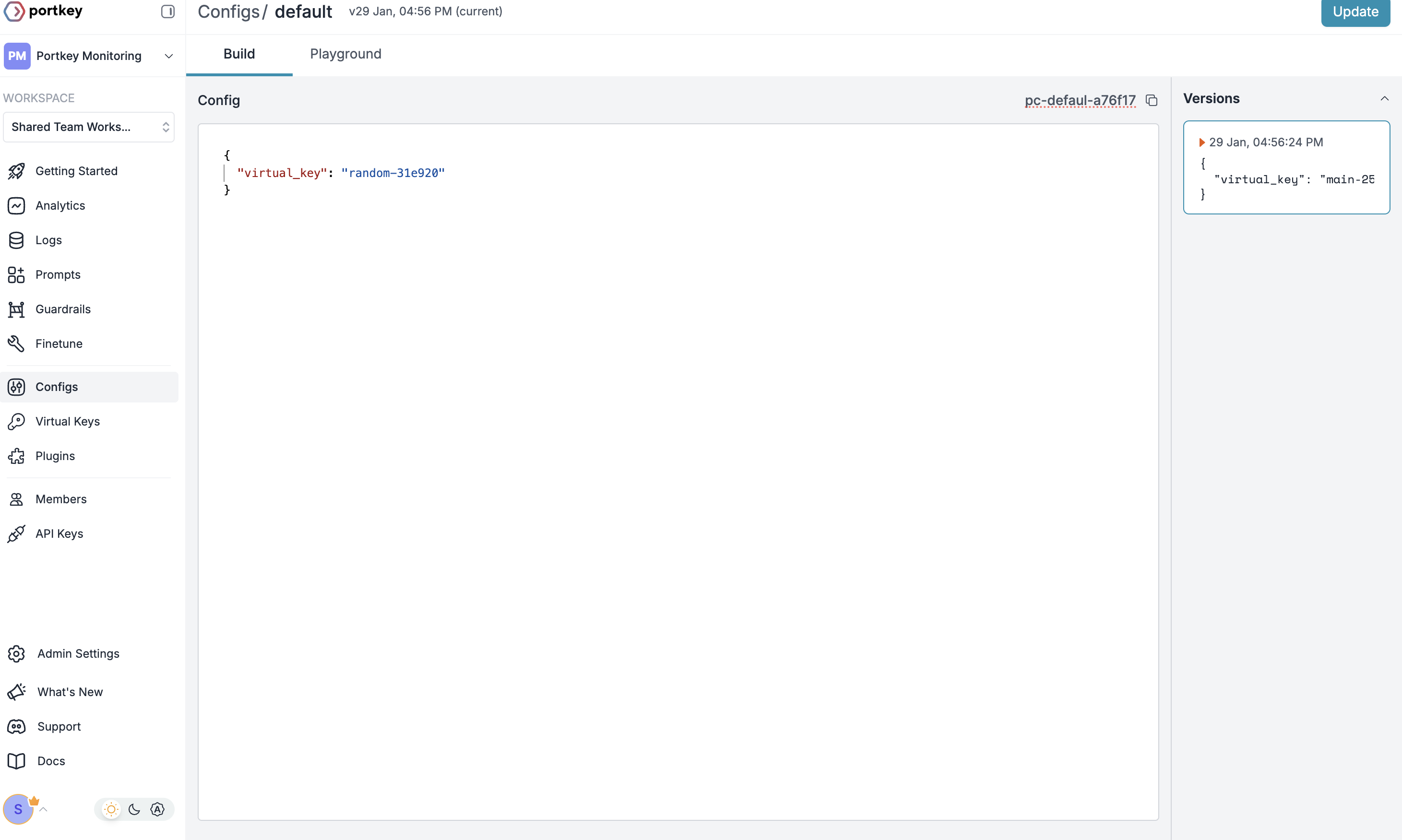
Configs in Portkey define how your requests are routed, with features like advanced routing, fallbacks, and retries.
To create your config:
- Go to Configs in Portkey dashboard
- Create new config with:
{"virtual_key": "YOUR_VIRTUAL_KEY_FROM_STEP1","override_params": {"model": "gpt-4o" // Your preferred model name}}
- Save and note the Config name for the next step
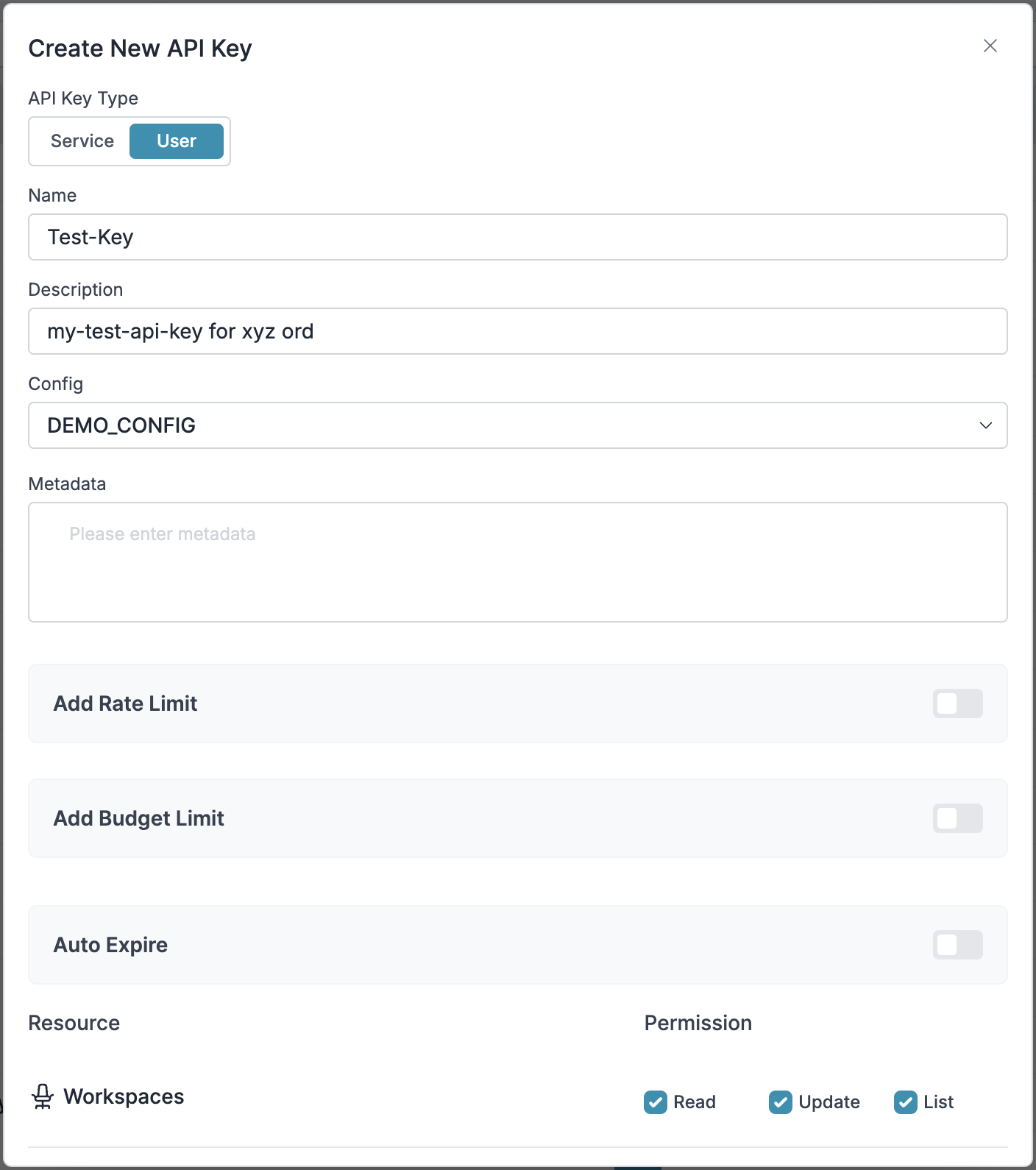
- Configure Portkey API Key
Now create a Portkey API key and attach the config you created in Step 2:
- Go to API Keys in Portkey and Create new API key
- Select your config from
Step 2 - Generate and save your API key
- Connect to CrewAI
After setting up your Portkey API key with the attached config, connect it to your CrewAI agents:
from crewai import Agent, LLMfrom portkey_ai import PORTKEY_GATEWAY_URL# Configure LLM with your API keyportkey_llm = LLM(model="gpt-4o",base_url=PORTKEY_GATEWAY_URL,api_key="YOUR_PORTKEY_API_KEY")# Create agent with Portkey-enabled LLMresearcher = Agent(role="Senior Research Scientist",goal="Discover groundbreaking insights about the assigned topic",backstory="You are an expert researcher with deep domain knowledge.",verbose=True,llm=portkey_llm)
Step 1: Implement Budget Controls & Rate Limits
Step 1: Implement Budget Controls & Rate Limits
Section titled “Step 1: Implement Budget Controls & Rate Limits”Virtual Keys enable granular control over LLM access at the team/department level. This helps you:
- Set up budget limits
- Prevent unexpected usage spikes using Rate limits
- Track departmental spending
Setting Up Department-Specific Controls:
Section titled “Setting Up Department-Specific Controls:”- Navigate to Virtual Keys in Portkey dashboard
- Create new Virtual Key for each department with budget limits and rate limits
- Configure department-specific limits
Step 2: Define Model Access Rules
Step 2: Define Model Access Rules
Section titled “Step 2: Define Model Access Rules”As your AI usage scales, controlling which teams can access specific models becomes crucial. Portkey Configs provide this control layer with features like:
Access Control Features:
Section titled “Access Control Features:”- Model Restrictions: Limit access to specific models
- Data Protection: Implement guardrails for sensitive data
- Reliability Controls: Add fallbacks and retry logic
Example Configuration:
Section titled “Example Configuration:”Here’s a basic configuration to route requests to OpenAI, specifically using GPT-4o:
{ "strategy": { "mode": "single" }, "targets": [ { "virtual_key": "YOUR_OPENAI_VIRTUAL_KEY", "override_params": { "model": "gpt-4o" } } ]}Create your config on the Configs page in your Portkey dashboard.
Step 3: Implement Access Controls
Step 3: Implement Access Controls
Section titled “Step 3: Implement Access Controls”Create User-specific API keys that automatically:
- Track usage per user/team with the help of virtual keys
- Apply appropriate configs to route requests
- Collect relevant metadata to filter logs
- Enforce access permissions
Create API keys through the Portkey App
Example using Python SDK:
from portkey_ai import Portkey
portkey = Portkey(api_key="YOUR_ADMIN_API_KEY")
api_key = portkey.api_keys.create(    name="engineering-team",    type="organisation",    workspace_id="YOUR_WORKSPACE_ID",    defaults={        "config_id": "your-config-id",        "metadata": {            "environment": "production",            "department": "engineering"        }    },    scopes=["logs.view", "configs.read"])
For detailed key management instructions, see the Portkey documentation.
Step 4: Deploy & Monitor
Step 4: Deploy & Monitor
Section titled “Step 4: Deploy & Monitor”After distributing API keys to your team members, your enterprise-ready CrewAI setup is ready to go. Each team member can now use their designated API keys with appropriate access levels and budget controls.
Monitor usage in Portkey dashboard:
- Cost tracking by department
- Model usage patterns
- Request volumes
- Error rates
Frequently Asked Questions
Section titled “Frequently Asked Questions”How does Portkey enhance CrewAI?
Portkey adds production-readiness to CrewAI through comprehensive observability (traces, logs, metrics), reliability features (fallbacks, retries, caching), and access to 200+ LLMs through a unified interface. This makes it easier to debug, optimize, and scale your agent applications.
Can I use Portkey with existing CrewAI applications?
Yes! Portkey integrates seamlessly with existing CrewAI applications. You just need to update your LLM configuration code with the Portkey-enabled version. The rest of your agent and crew code remains unchanged.
Does Portkey work with all CrewAI features?
Portkey supports all CrewAI features, including agents, tools, human-in-the-loop workflows, and all task process types (sequential, hierarchical, etc.). It adds observability and reliability without limiting any of the framework’s functionality.
Can I track usage across multiple agents in a crew?
Yes, Portkey allows you to use a consistent trace_id across multiple agents in a crew to track the entire workflow. This is especially useful for complex crews where you want to understand the full execution path across multiple agents.
How do I filter logs and traces for specific crew runs?
Portkey allows you to add custom metadata to your LLM configuration, which you can then use for filtering. Add fields like crew_name, crew_type, or session_id to easily find and analyze specific crew executions.
Can I use my own API keys with Portkey?
Yes! Portkey uses your own API keys for the various LLM providers. It securely stores them as virtual keys, allowing you to easily manage and rotate keys without changing your code.