Slack Trigger
This guide explains how to start a crew directly from Slack using CrewAI triggers.
Prerequisites
Section titled “Prerequisites”- CrewAI Slack trigger installed and connected to your Slack workspace
- At least one crew configured in CrewAI
Setup Steps
Section titled “Setup Steps”- Ensure the CrewAI Slack trigger is set up
In the CrewAI dashboard, navigate to the Triggers section.
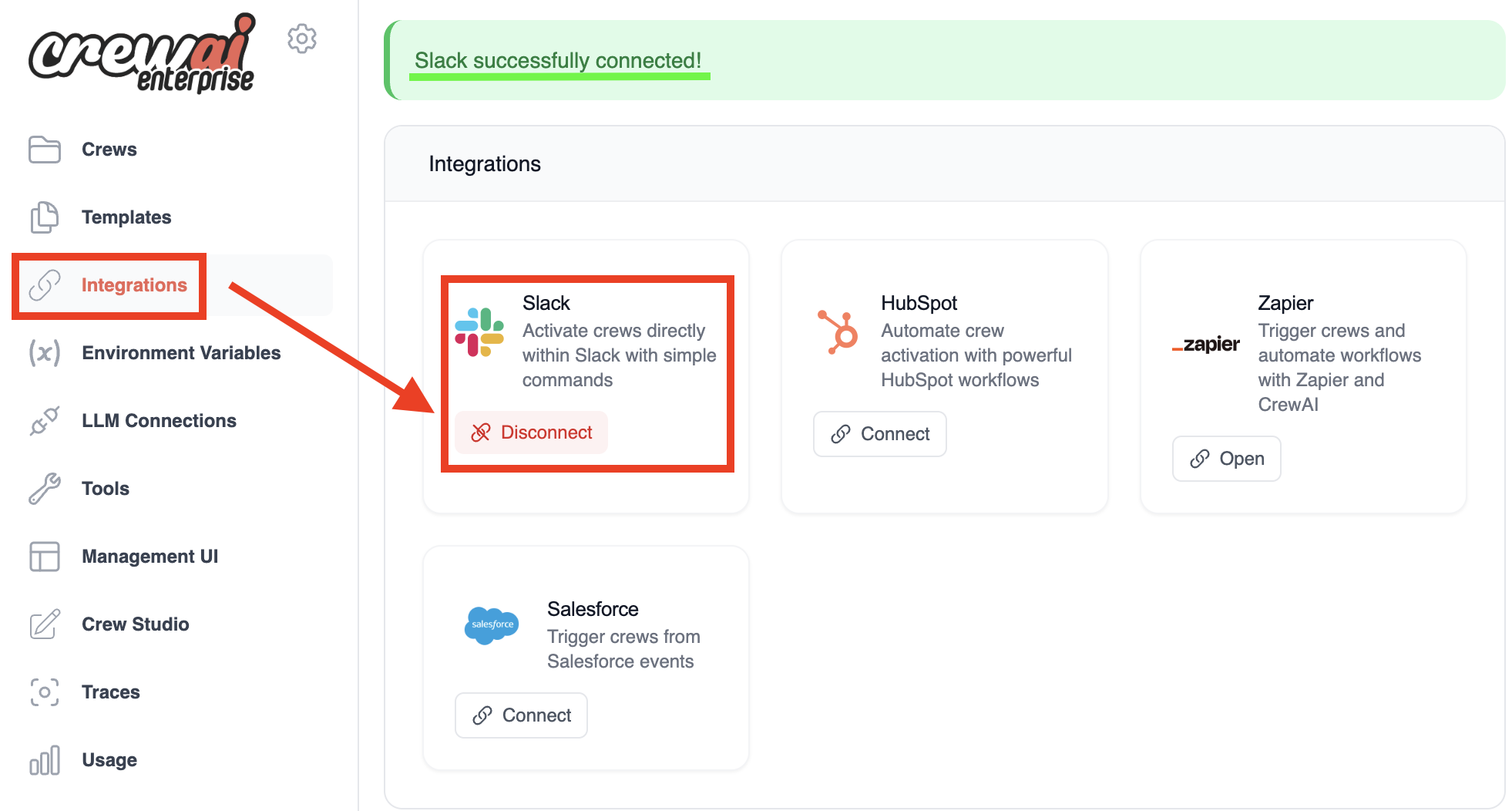
Verify that Slack is listed and is connected.
- Open your Slack channel
- Navigate to the channel where you want to kickoff the crew.
- Type the slash command “/kickoff” to initiate the crew kickoff process.
- You should see a “Kickoff crew” appear as you type:
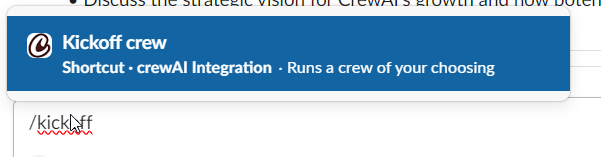
- Press Enter or select the “Kickoff crew” option. A dialog box titled “Kickoff an AI Crew” will appear.
- Select the crew you want to start
- In the dropdown menu labeled “Select of the crews online:”, choose the crew you want to start.
- In the example below, “prep-for-meeting” is selected:
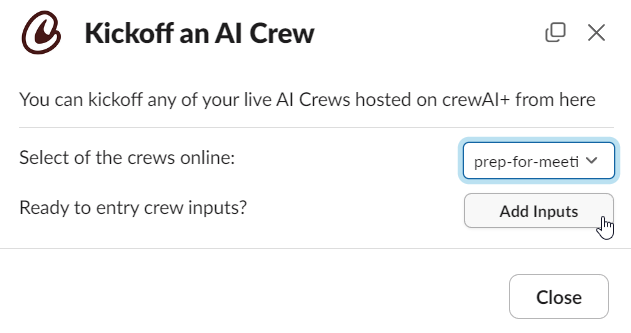
- If your crew requires any inputs, click the “Add Inputs” button to provide them.
- Click Kickoff and wait for the crew to complete
- Once you’ve selected the crew and added any necessary inputs, click “Kickoff” to start the crew.
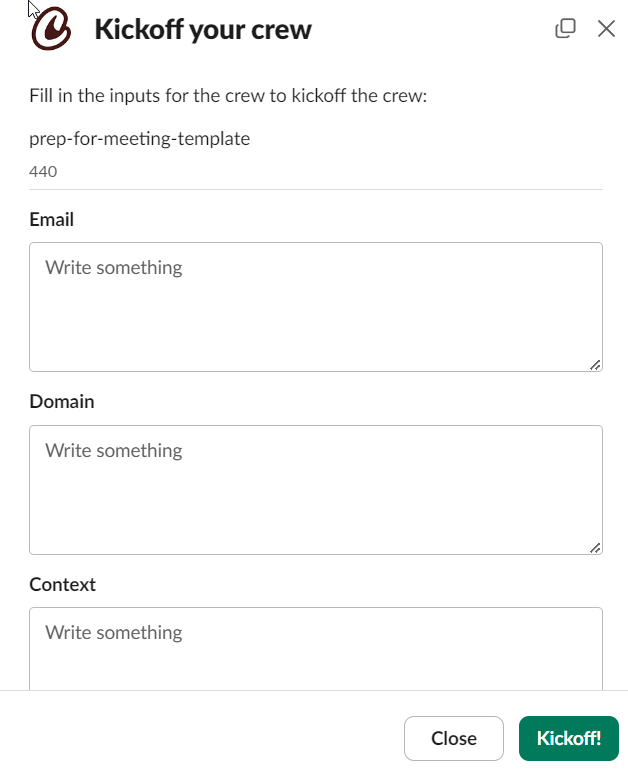
- The crew will start executing and you will see the results in the Slack channel.
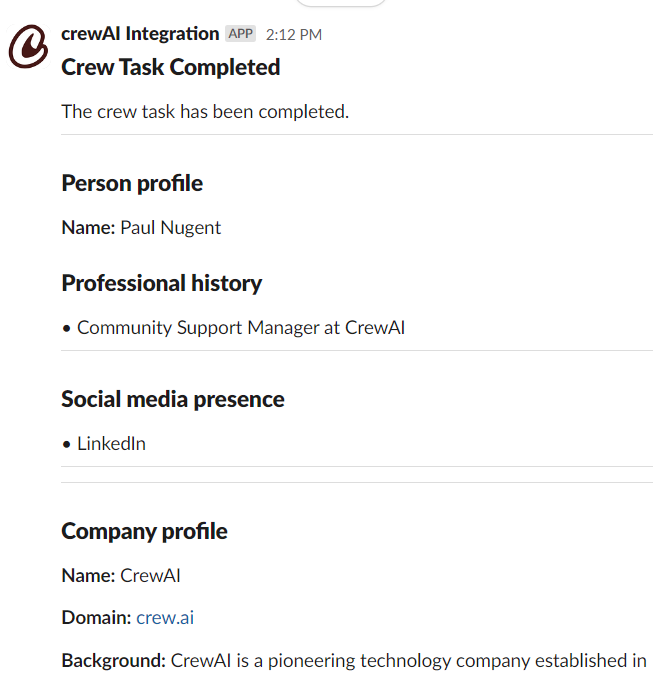
- Once you’ve selected the crew and added any necessary inputs, click “Kickoff” to start the crew.
- Make sure you have the necessary permissions to use the
/kickoffcommand in your Slack workspace. - If you don’t see your desired crew in the dropdown, ensure it’s properly configured and online in CrewAI.