Google Drive Trigger
Overview
Section titled “Overview”Trigger your automations when files are created, updated, or removed in Google Drive. Typical workflows include summarizing newly uploaded content, enforcing sharing policies, or notifying owners when critical files change.
Enabling the Google Drive Trigger
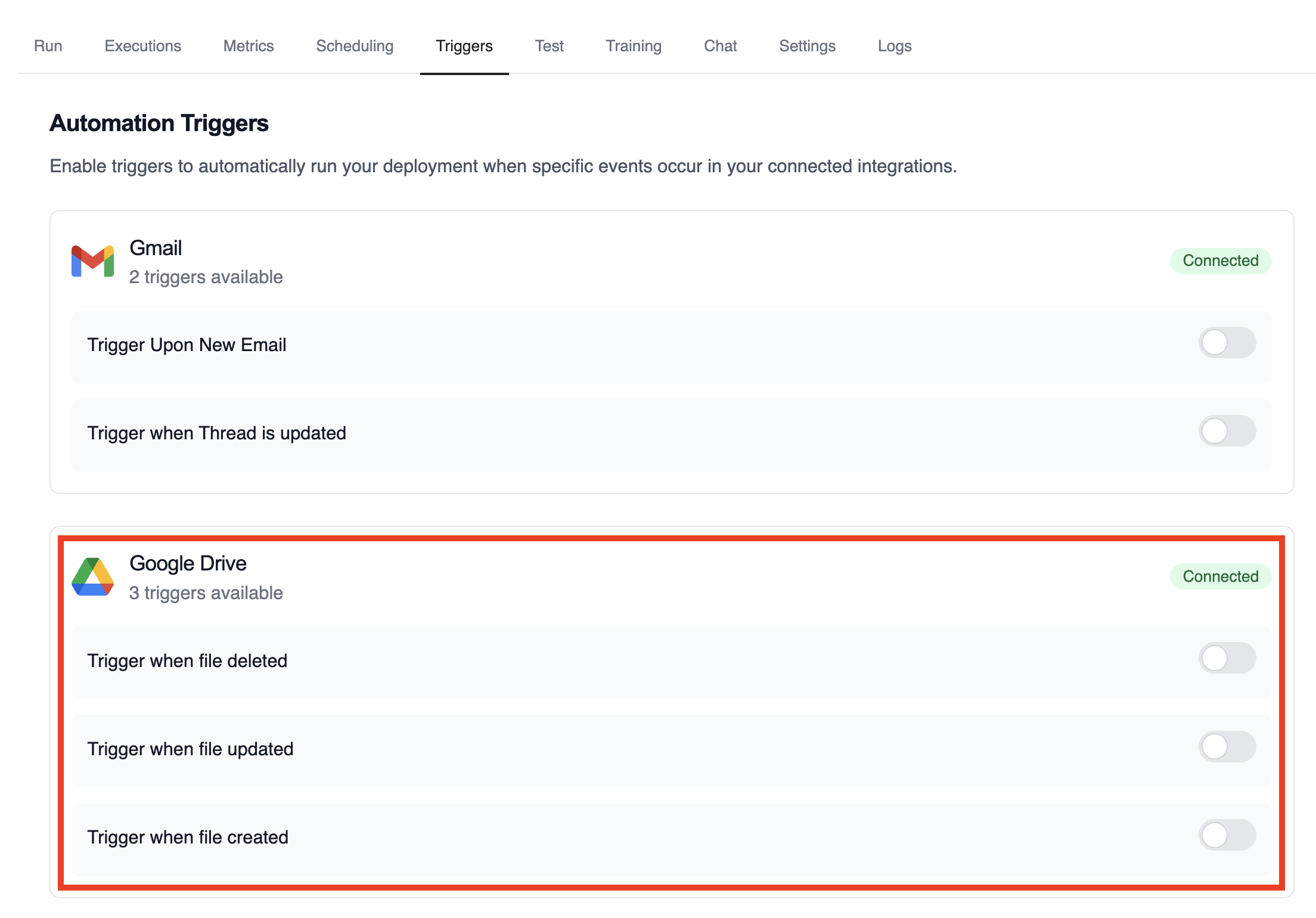
Section titled “Enabling the Google Drive Trigger”- Open your deployment in CrewAI AMP
- Go to the Triggers tab
- Locate Google Drive and switch the toggle to enable
Example: Summarize file activity
Section titled “Example: Summarize file activity”The drive example crews parse the payload to extract file metadata, evaluate permissions, and publish a summary.
from drive_file_crew import GoogleDriveFileTrigger
crew = GoogleDriveFileTrigger().crew()crew.kickoff({    "crewai_trigger_payload": drive_payload,})
Testing Locally
Section titled “Testing Locally”Test your Google Drive trigger integration locally using the CrewAI CLI:
# View all available triggerscrewai triggers list
# Simulate a Google Drive trigger with realistic payloadcrewai triggers run google_drive/file_changed
The crewai triggers run command will execute your crew with a complete Drive payload, allowing you to test your parsing logic before deployment.
Monitoring Executions
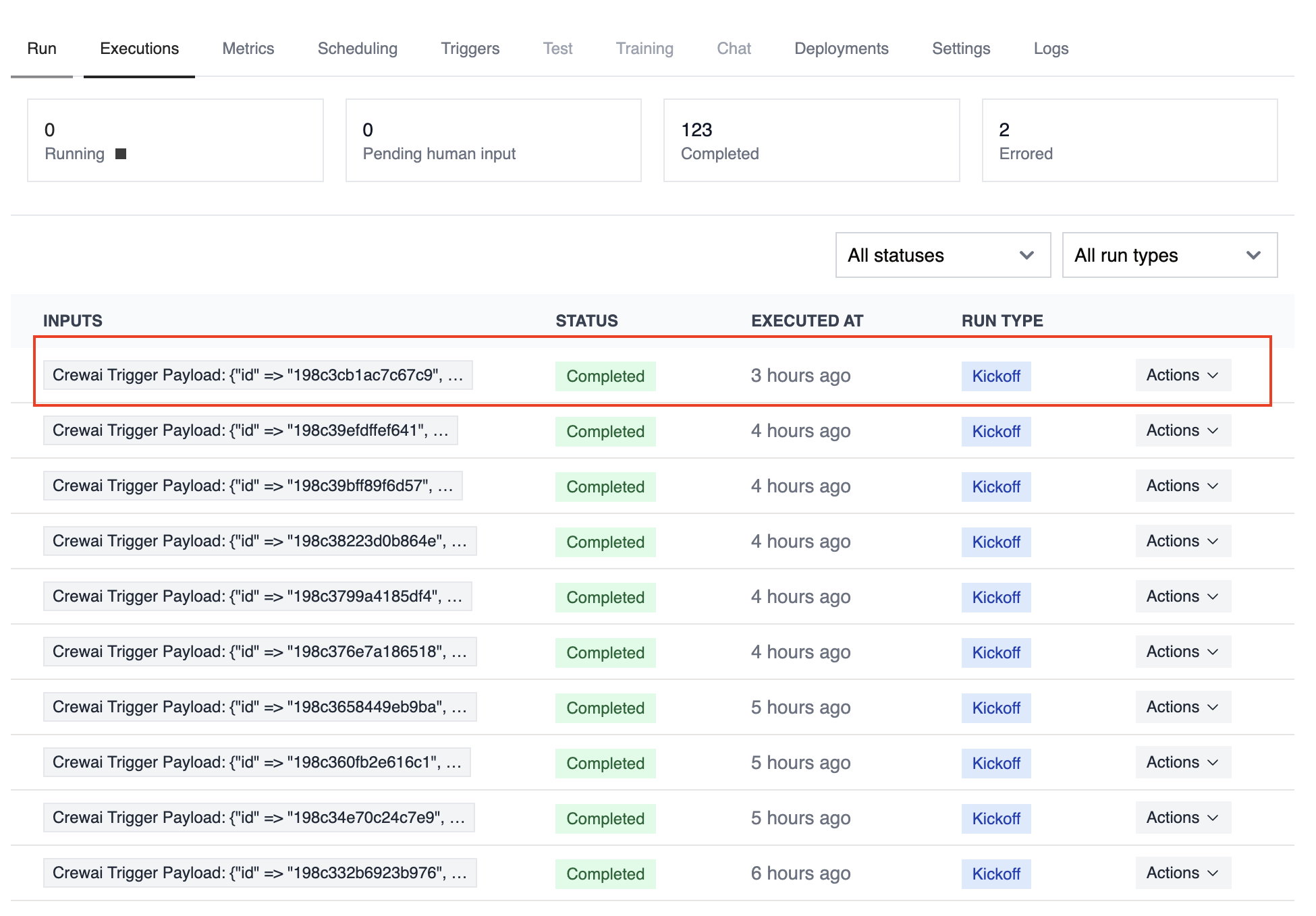
Section titled “Monitoring Executions”Track history and performance of triggered runs with the Executions list in the deployment dashboard.
Troubleshooting
Section titled “Troubleshooting”- Verify Google Drive is connected and the trigger toggle is enabled
- Test locally with
crewai triggers run google_drive/file_changedto see the exact payload structure - If a payload is missing permission data, ensure the connected account has access to the file or folder
- The trigger sends file IDs only; use the Drive API if you need to fetch binary content during the crew run
- Remember: use
crewai triggers run(notcrewai run) to simulate trigger execution