Gmail Trigger
Overview
Section titled “Overview”Use the Gmail Trigger to kick off your deployed crews when Gmail events happen in connected accounts, such as receiving a new email or messages matching a label/filter.
Enabling the Gmail Trigger
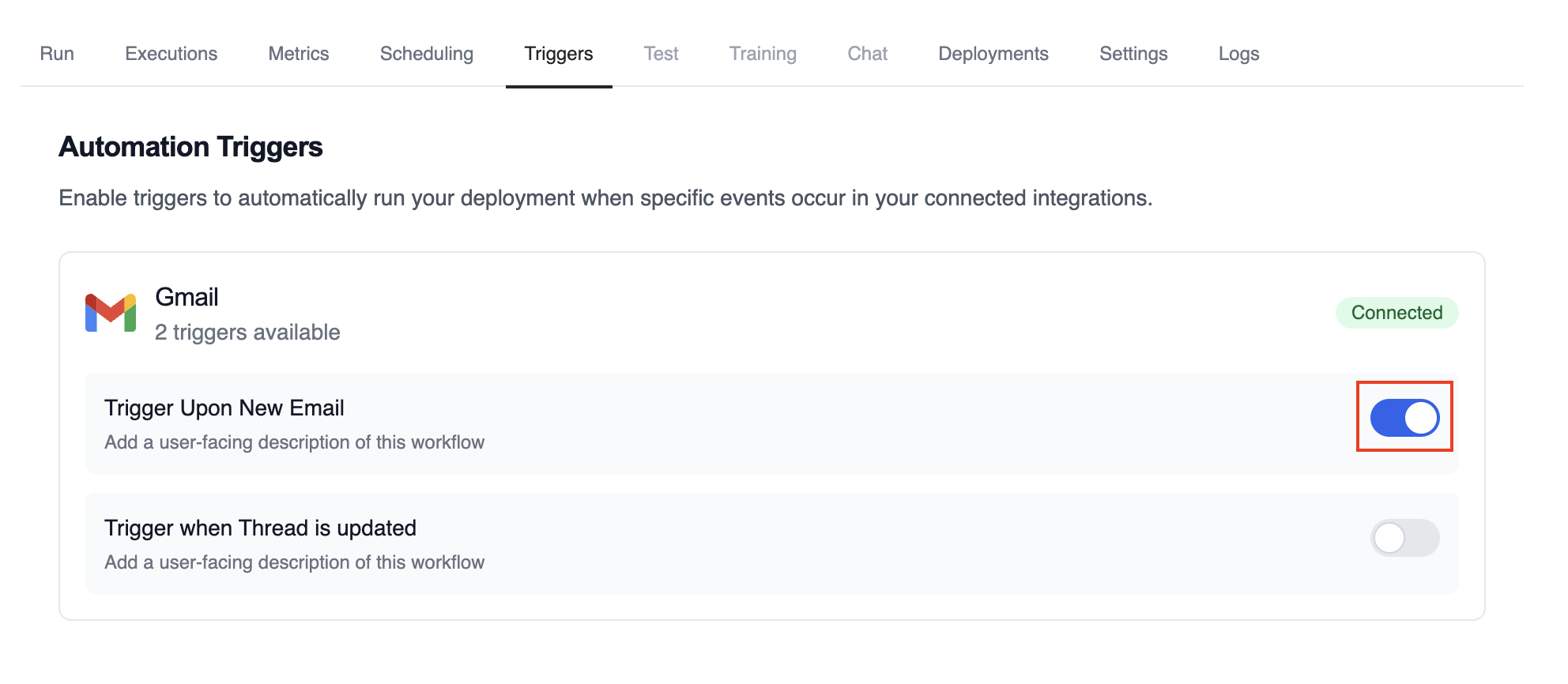
Section titled “Enabling the Gmail Trigger”- Open your deployment in CrewAI AMP
- Go to the Triggers tab
- Locate Gmail and switch the toggle to enable
Example: Process new emails
Section titled “Example: Process new emails”When a new email arrives, the Gmail Trigger will send the payload to your Crew or Flow. Below is a Crew example that parses and processes the trigger payload.
@CrewBaseclass GmailProcessingCrew:    @agent    def parser(self) -> Agent:        return Agent(            config=self.agents_config['parser'],        )
    @task    def parse_gmail_payload(self) -> Task:        return Task(            config=self.tasks_config['parse_gmail_payload'],            agent=self.parser(),        )
    @task    def act_on_email(self) -> Task:        return Task(            config=self.tasks_config['act_on_email'],            agent=self.parser(),        )
The Gmail payload will be available via the standard context mechanisms.
Testing Locally
Section titled “Testing Locally”Test your Gmail trigger integration locally using the CrewAI CLI:
# View all available triggerscrewai triggers list
# Simulate a Gmail trigger with realistic payloadcrewai triggers run gmail/new_email_received
The crewai triggers run command will execute your crew with a complete Gmail payload, allowing you to test your parsing logic before deployment.
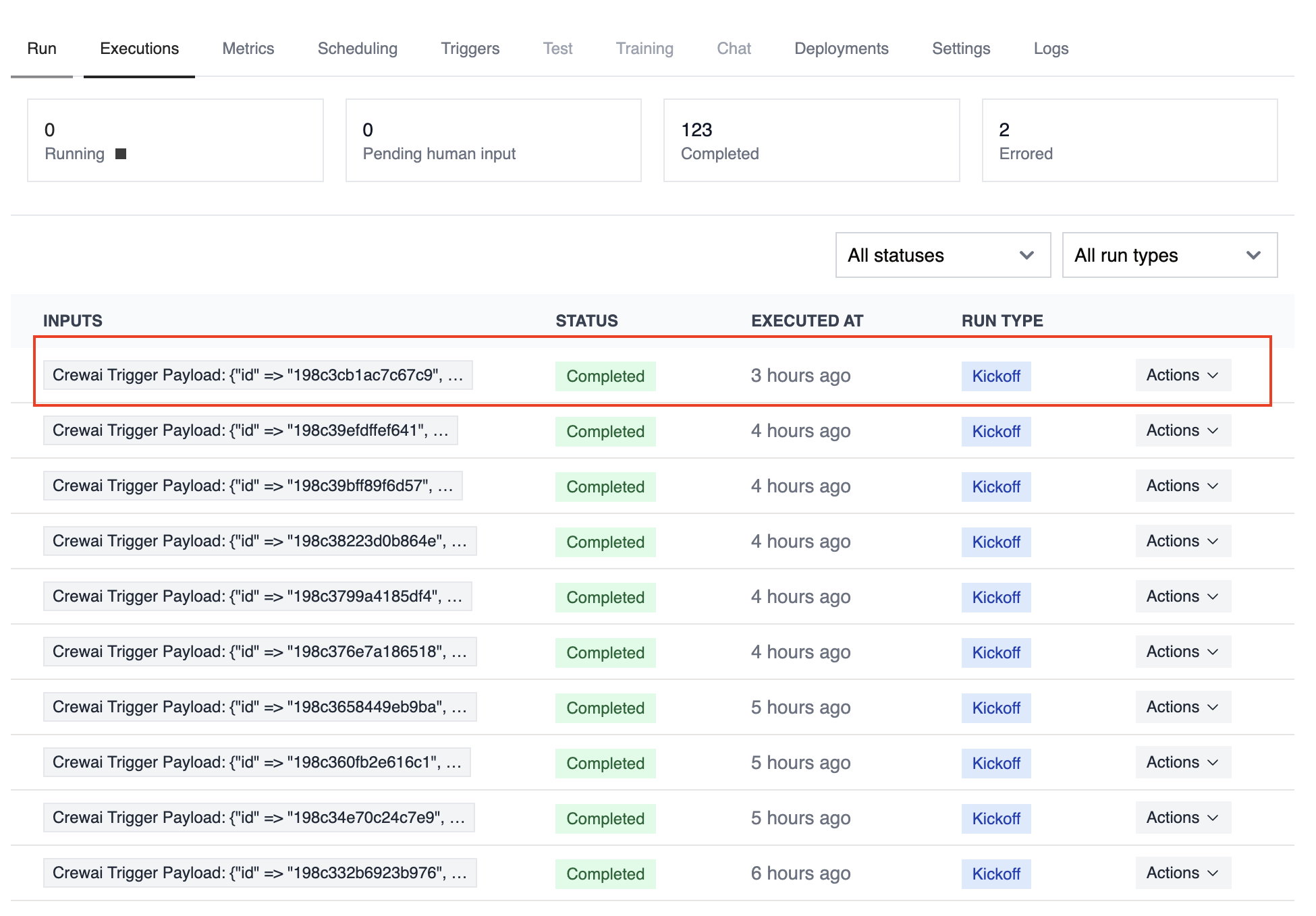
Monitoring Executions
Section titled “Monitoring Executions”Track history and performance of triggered runs:
Troubleshooting
Section titled “Troubleshooting”- Ensure Gmail is connected in Tools & Integrations
- Verify the Gmail Trigger is enabled on the Triggers tab
- Test locally with
crewai triggers run gmail/new_email_receivedto see the exact payload structure - Check the execution logs and confirm the payload is passed as
crewai_trigger_payload - Remember: use
crewai triggers run(notcrewai run) to simulate trigger execution