Enable Crew Studio
What is Crew Studio?
Section titled “What is Crew Studio?”Crew Studio is an innovative way to create AI agent crews without writing code.
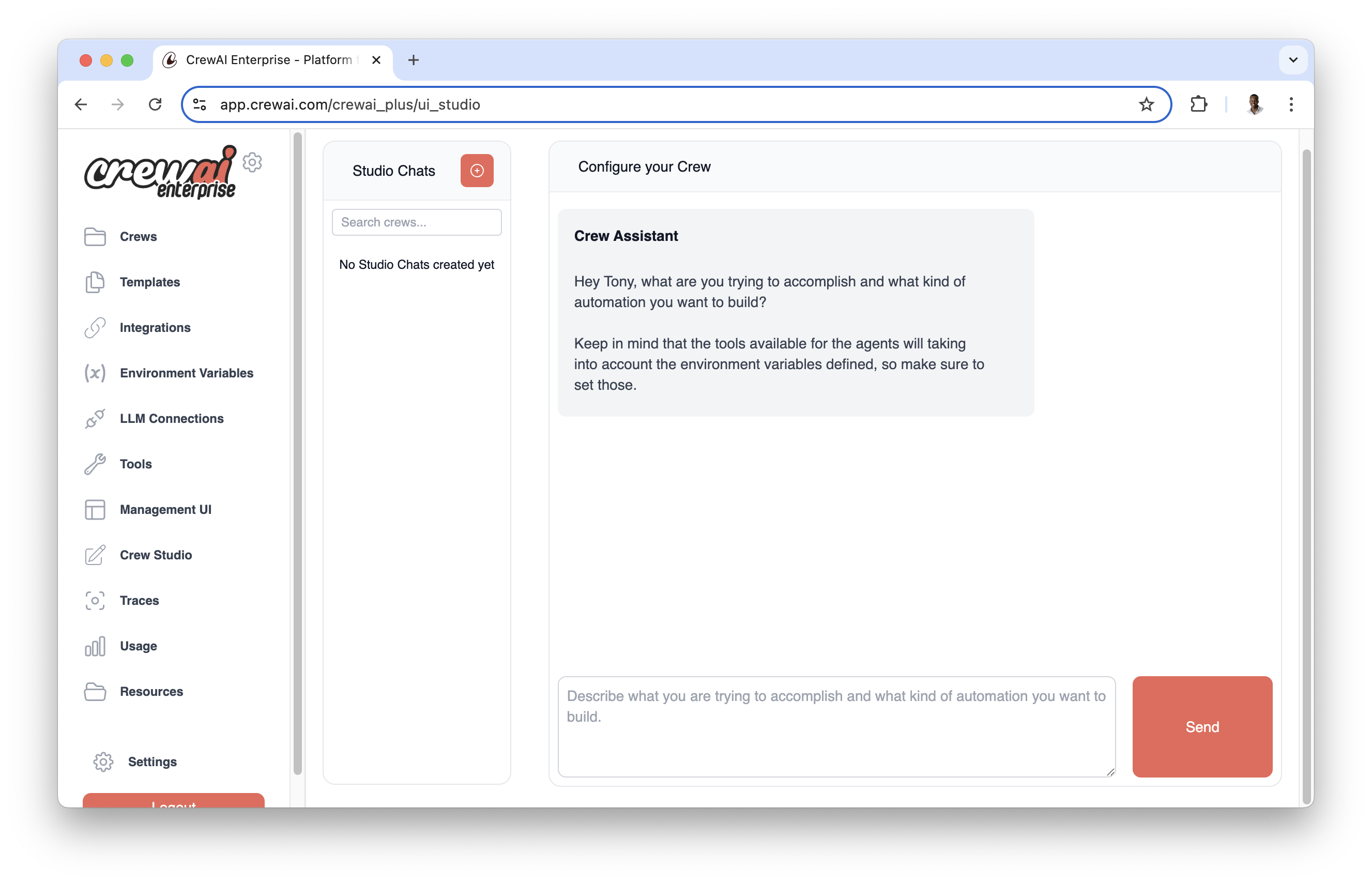
With Crew Studio, you can:
- Chat with the Crew Assistant to describe your problem
- Automatically generate agents and tasks
- Select appropriate tools
- Configure necessary inputs
- Generate downloadable code for customization
- Deploy directly to the CrewAI AMP platform
Configuration Steps
Section titled “Configuration Steps”Before you can start using Crew Studio, you need to configure your LLM connections:
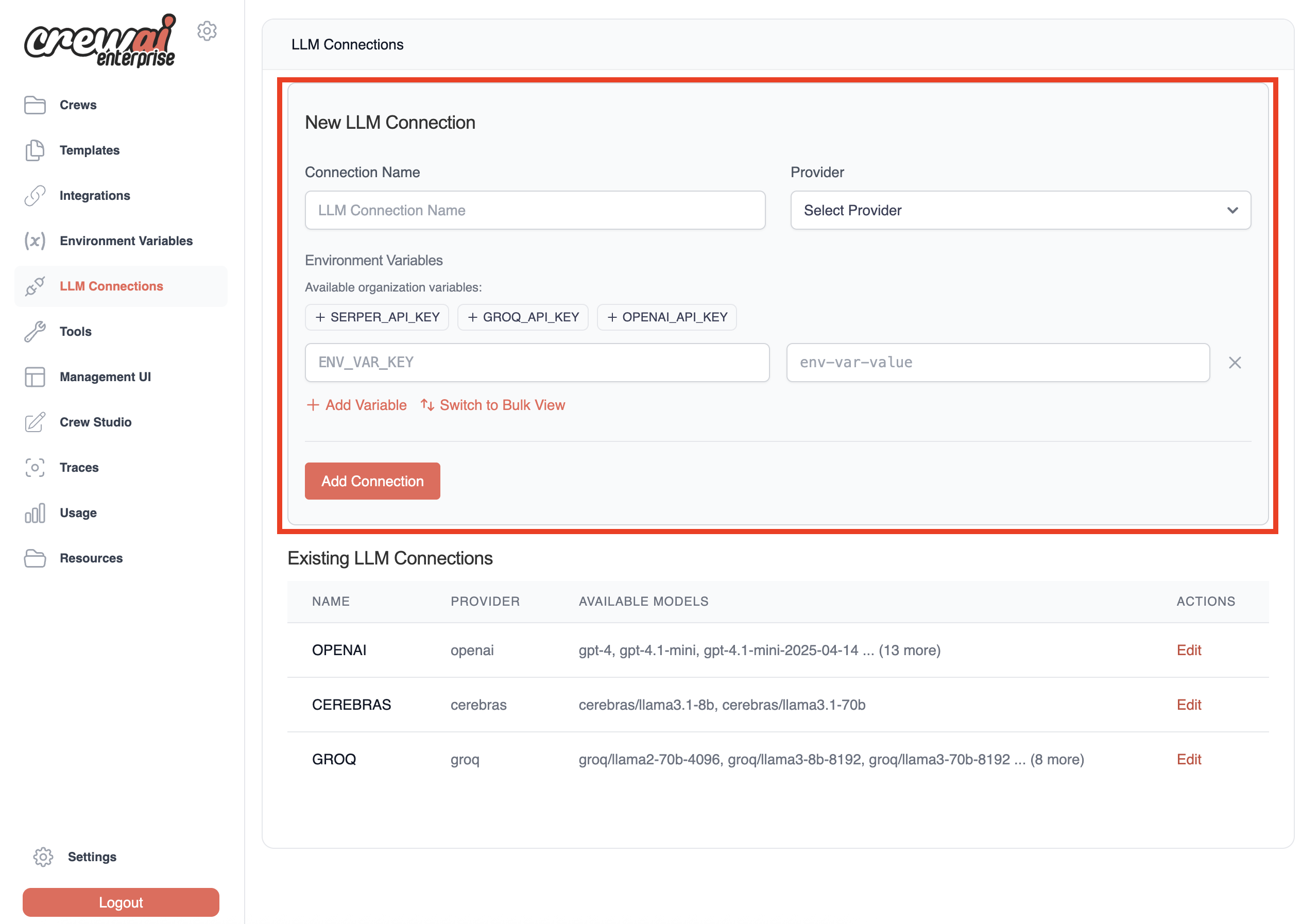
- Set Up LLM Connection
Go to the LLM Connections tab in your CrewAI AMP dashboard and create a new LLM connection.
Configure your LLM connection:
- Enter a
Connection Name(e.g.,OpenAI) - Select your model provider:
openaiorazure - Select models you’d like to use in your Studio-generated Crews
- We recommend at least
gpt-4o,o1-mini, andgpt-4o-mini
- We recommend at least
- Add your API key as an environment variable:
- For OpenAI: Add
OPENAI_API_KEYwith your API key - For Azure OpenAI: Refer to this article for configuration details
- For OpenAI: Add
- Click
Add Connectionto save your configuration
- Enter a
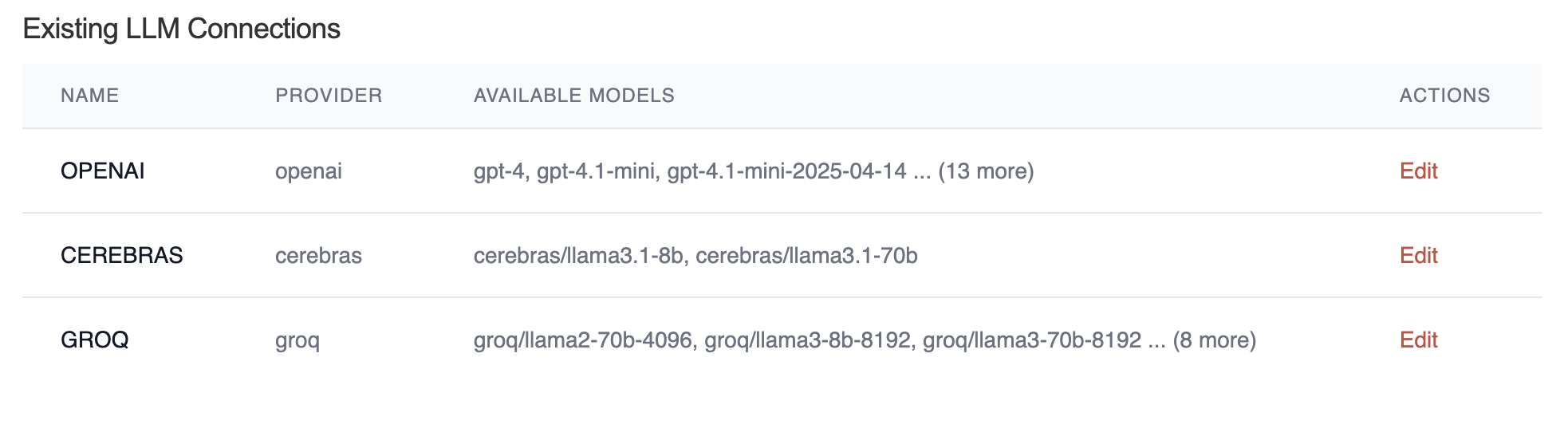
- Verify Connection Added
Once you complete the setup, you’ll see your new connection added to the list of available connections.
- Configure LLM Defaults
In the main menu, go to Settings → Defaults and configure the LLM Defaults settings:
- Select default models for agents and other components
- Set default configurations for Crew Studio
Click
Save Settingsto apply your changes.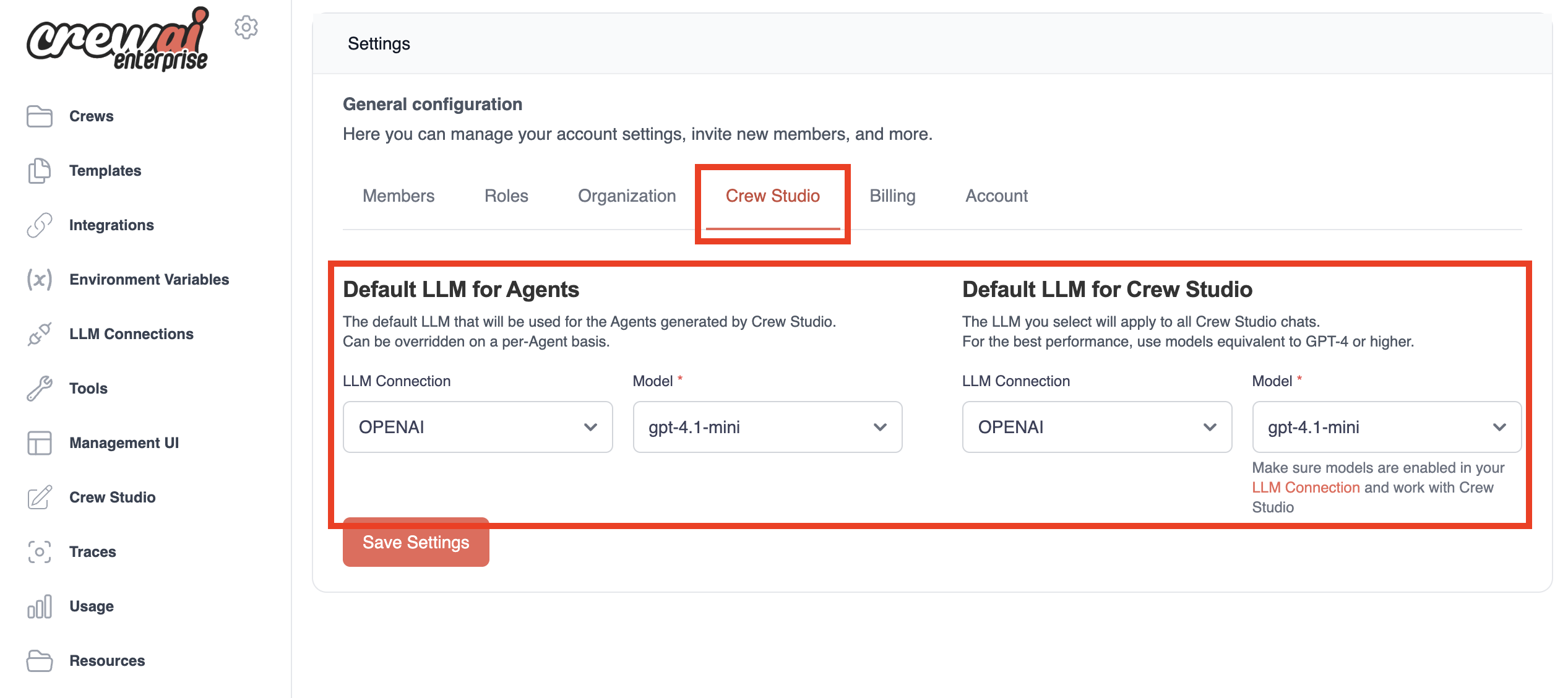
Using Crew Studio
Section titled “Using Crew Studio”Now that you’ve configured your LLM connection and default settings, you’re ready to start using Crew Studio!
- Access Studio
Navigate to the Studio section in your CrewAI AMP dashboard.
- Start a Conversation
Start a conversation with the Crew Assistant by describing the problem you want to solve:
I need a crew that can research the latest AI developments and create a summary report.The Crew Assistant will ask clarifying questions to better understand your requirements.
- Review Generated Crew
Review the generated crew configuration, including:
- Agents and their roles
- Tasks to be performed
- Required inputs
- Tools to be used
This is your opportunity to refine the configuration before proceeding.
- Deploy or Download
Once you’re satisfied with the configuration, you can:
- Download the generated code for local customization
- Deploy the crew directly to the CrewAI AMP platform
- Modify the configuration and regenerate the crew
- Test Your Crew
After deployment, test your crew with sample inputs to ensure it performs as expected.
Example Workflow
Section titled “Example Workflow”Here’s a typical workflow for creating a crew with Crew Studio:
- Describe Your Problem
Start by describing your problem:
I need a crew that can analyze financial news and provide investment recommendations - Answer Questions
Respond to clarifying questions from the Crew Assistant to refine your requirements.
- Review the Plan
Review the generated crew plan, which might include:
- A Research Agent to gather financial news
- An Analysis Agent to interpret the data
- A Recommendations Agent to provide investment advice
- Approve or Modify
Approve the plan or request changes if necessary.
- Download or Deploy
Download the code for customization or deploy directly to the platform.
- Test and Refine
Test your crew with sample inputs and refine as needed.
Need Help?
Contact our support team for assistance with Crew Studio or any other CrewAI AMP features.