Outlook Trigger
Overview
Section titled “Overview”Automate responses when Outlook delivers a new message or when an event is removed from the calendar. Teams commonly route escalations, file tickets, or alert attendees of cancellations.
Enabling the Outlook Trigger
Section titled “Enabling the Outlook Trigger”- Open your deployment in CrewAI AMP
- Go to the Triggers tab
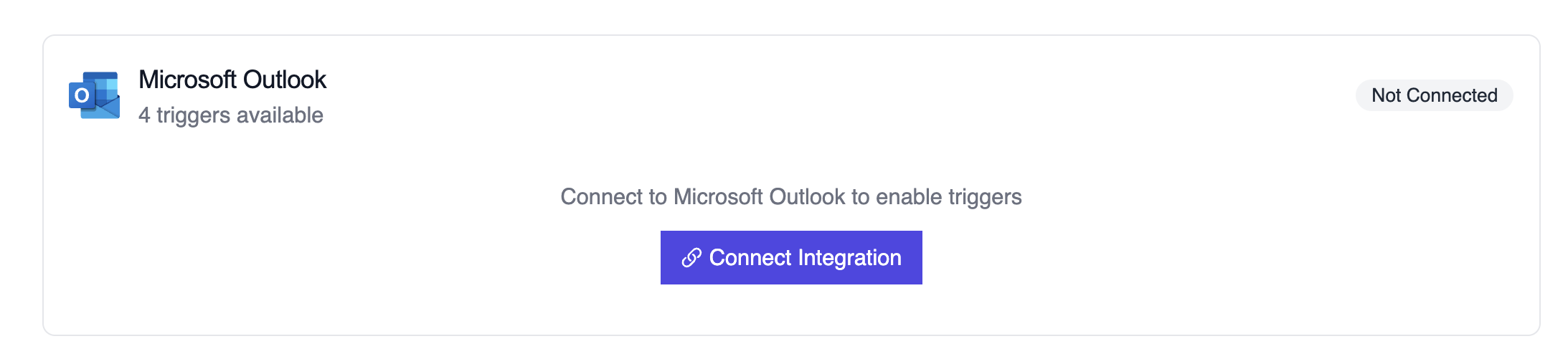
- Locate Outlook and switch the toggle to enable
Example: Summarize a new email
Section titled “Example: Summarize a new email”from outlook_message_crew import OutlookMessageTrigger
crew = OutlookMessageTrigger().crew()crew.kickoff({ "crewai_trigger_payload": outlook_payload,})The crew extracts sender details, subject, body preview, and attachments before generating a structured response.
Testing Locally
Section titled “Testing Locally”Test your Outlook trigger integration locally using the CrewAI CLI:
# View all available triggerscrewai triggers list
# Simulate an Outlook trigger with realistic payloadcrewai triggers run microsoft_outlook/email_received
The crewai triggers run command will execute your crew with a complete Outlook payload, allowing you to test your parsing logic before deployment.
Troubleshooting
Section titled “Troubleshooting”- Verify the Outlook connector is still authorized; the subscription must be renewed periodically
- Test locally with
crewai triggers run microsoft_outlook/email_receivedto see the exact payload structure - If attachments are missing, confirm the webhook subscription includes the
includeResourceDataflag - Review execution logs when events fail to match—cancellation payloads lack attendee lists by design and the crew should account for that
- Remember: use
crewai triggers run(notcrewai run) to simulate trigger execution